How to use the spread tables: shared features
In short
- Every spread table has the same toolkit: coin search, favorites, pinning, the trash button, column settings and full screen mode.
- You can hide and reorder columns in the Table settings window, and Reset to default brings the original layout back.
- In free mode the tables show some of the exchanges; all 17+ CEX unlock with the Lite and Pro plans.
The spread tables in Genesis Arbitrage all work the same way: coin search, filters and alert buttons sit above the table, each row can be pinned, starred or sent to the trash, and you decide which columns to see. Learn these features once and you can work in any Arbitrage Products section. Here is what each button does and how to build a layout that suits you.
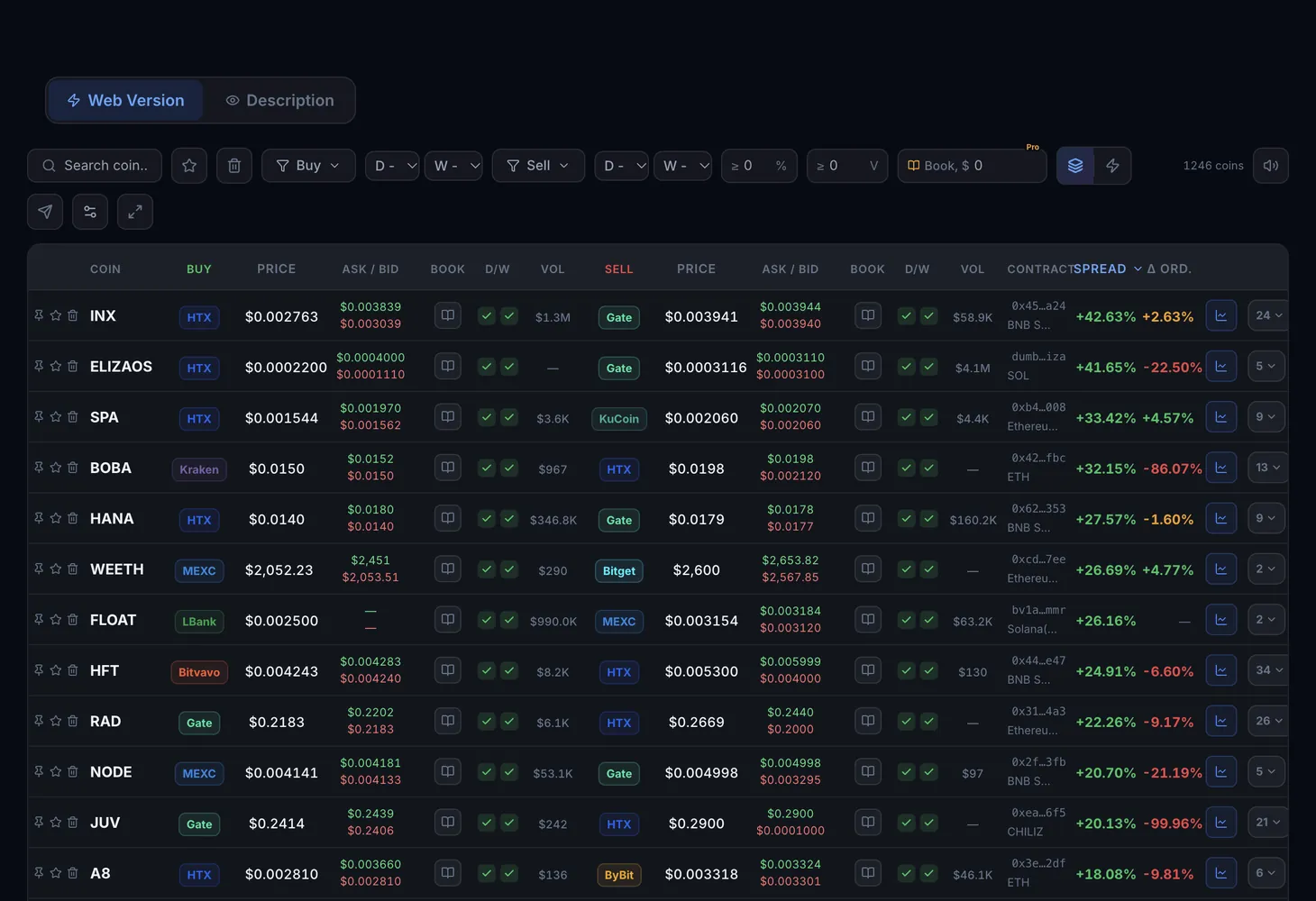
How a table is organized
Each row is one opportunity: a coin and the two sides of the trade. Depending on the section, the sides are called Buy and Sell or Long and Short. Columns are grouped by side, with the resulting values, such as the spread, on the right.
| Element | What it does |
|---|---|
| Coin search | Finds a coin by ticker |
| Favorites | The star in a row marks a coin, and the Favorites button above the table keeps only the marked ones |
| Pin | The button in a row pins it so the coin you care about does not get lost among the others |
| Trash | Removes a row you do not need from the table |
| Actions column | Holds the row buttons: pin, favorite and trash |
| Chart button | Sits at the end of the row and opens the coin's chart |
| Coin counter | Shows how many coins are left in the selection after filtering |
| Column settings | Opens the Table settings window |
| Full screen mode | Expands the table to the whole screen |
| Alert buttons | Turn on sound alerts and Telegram alerts |
Column settings
The Table settings window has two parts: the Columns list and the Preview. Changes apply to the table straight away, so there is nothing to save.
- Hide and Show: remove a column from the table or bring it back.
- Drag to reorder: drag a column in the list to change the order.
- Reset to default: restore the original set and order of columns.
- Done: close the window.
There are two limits. Some columns cannot be hidden, and the hint "This column cannot be hidden" tells you so. And in some groups at least one column must stay visible, which a hint also points out.
Modes, alerts and full screen
- All pairs and By coin: a switch in the Spot – Spot table. In the first mode every exchange pair is a separate row; in the second each coin takes one row with its best pair.
- Sound alerts: a button above the table. The sound plays right in your browser.
- Telegram alerts: the button next to it. Setup is described on the Telegram Alerts page.
- Full screen mode: handy when there are many columns and the table does not fit the width.
How to set a table up for yourself
Find your coins
Type a ticker into coin search and star the coins you follow. The Favorites button will then show only those.
Pin what matters and remove the rest
Pin the rows you want to keep in view and send the ones you do not need to the trash.
Keep only useful columns
Open column settings, hide what you never use and drag the important columns closer to the start. The Preview shows the result at once.
Expand the table
Turn on full screen mode if a row does not fit on the screen.
Turn on alerts
Click the sound or Telegram button to hear about new spreads without watching the table all day.
Free mode and paid columns
Without a plan the tables run in free mode and show some of the exchanges. A banner reading "More exchanges — more spreads" with a Try LITE button reminds you of that: all 17+ CEX unlock with the Lite and Pro plans.
Some columns belong to paid plans, for example Book and Δ by orders. Without a plan they show a lock. Funding spreads are available with the Pro plan. For the differences between plans see Lite and Pro plans explained, and for prices the Pricing page.
For a column-by-column walkthrough of one table, read How to read the Spot – Spot table. The theory is in the course lesson on spread, depth and volume and in the glossary: spread, order book.
Questions and answers
How do I restore the default columns?
Open column settings and click Reset to default. The set and order of columns go back to the original.
Why can't I hide a column?
Some columns are required and cannot be hidden. In addition, at least one column of some groups must stay visible, so turn on another column of that group first.
Why doesn't the table show all exchanges?
That is how free mode works: it shows some of the exchanges. All 17+ CEX unlock with the Lite and Pro plans.
What does a lock in a column mean?
The column belongs to a paid plan. Once you subscribe, it will show data.