Telegram notifications: how to connect your own bot and set up signals
In short
- Signals arrive in your own Telegram bot: you create it in @BotFather and paste the token on the site.
- Categories come as ready-made Community picks or are built in Personal settings with filters by spread, exchanges and networks.
- The personal bot is available on the Pro plan and requires a linked Telegram account.
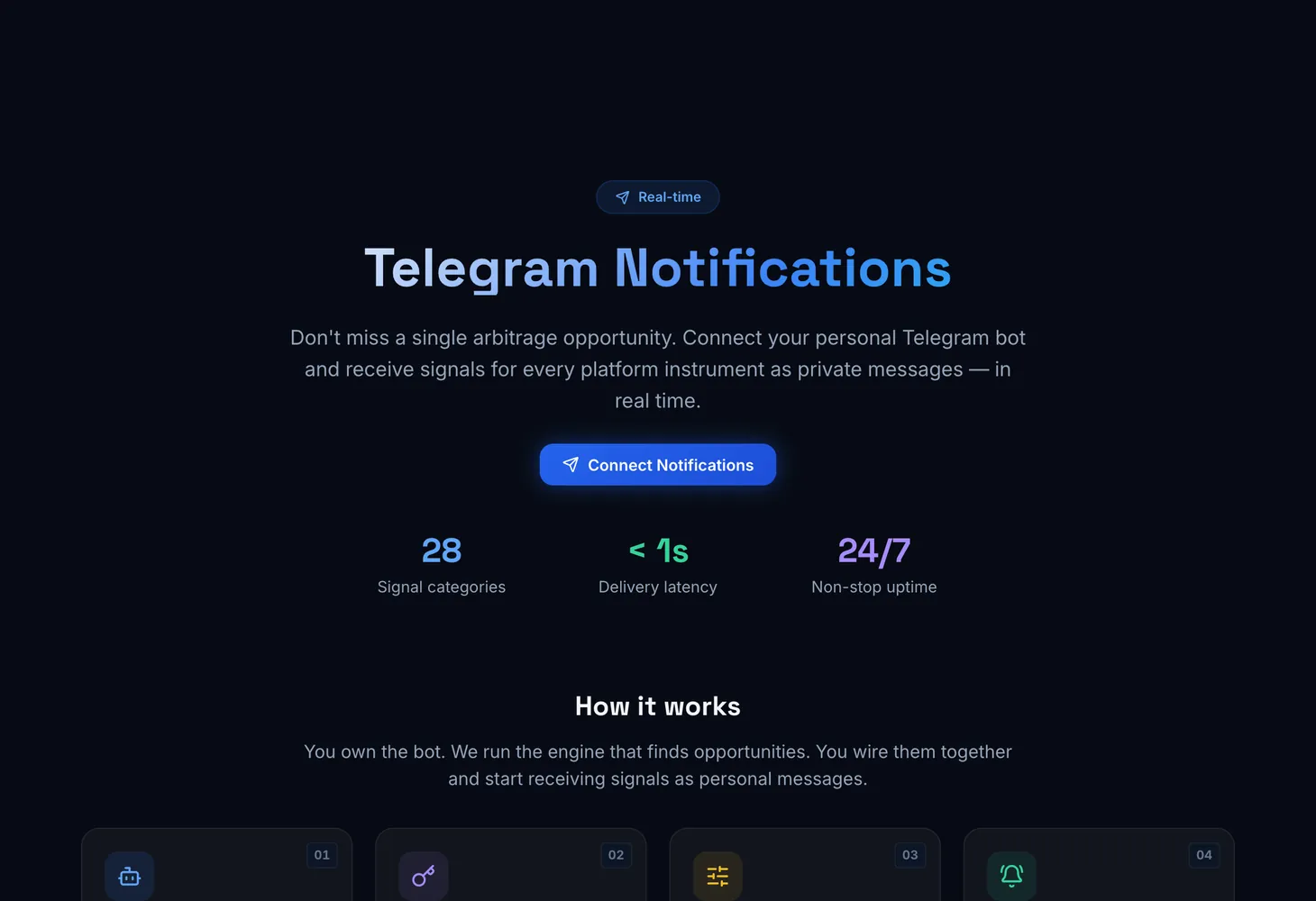
Telegram notifications deliver Genesis Arbitrage signals as private messages from your own bot. You create a bot in @BotFather, paste its token on the site and choose categories: CEX and DEX arbitrage, Crosschain, pumps and dumps, Genesis AI+, Genesis OnChain, news and listings. A matching opportunity arrives as a message, so you do not need to keep the site open. The section is Telegram Alerts.
How to connect the bot
Press Connect Notifications on the section page. The Telegram notifications card opens with a status: Not set up, Finish setup or Active.
Create a bot
Open @BotFather in Telegram and send /newbot. BotFather sends you an HTTP API token.
Paste the token
Copy the token into the Bot token field and press Bind bot. A token looks like 123456:ABC…; Show token helps you check what you typed.
Verify the bot
Open your bot, press /start, come back to the site and press Verify. Send the command from the same Telegram account you used to sign in to the service.
Check delivery
When the status reads Your bot is connected, press Test notif. A test message should arrive in your bot.
Choose signals
Tick categories in Community picks or set filters in Personal settings.
Notification categories
The Notification categories block offers two ways to pick signals.
| Block | What it gives |
|---|---|
| Community picks | Ready-made categories with verified filters and extra volume, order and spam checks |
| Personal settings | Your own filters per instrument: spread, exchanges, networks, liquidity and more |
Categories are grouped into CEX — CEX, DEX — CEX, DEX ONLY, Genesis AI+, GENESIS ONCHAIN and Other. For example, Community picks include Spot - Spot · From 10% to 30%, DEX - Futures · From -12% to -6%, Crosschain, Funding arbitrage, News and Listings. Genesis AI+ has the Alpha, High, Middle, Risky and Analytics levels.
Personal settings filters
The set of fields depends on the instrument. The most common ones are:
- Minimum spread, Positive spread and Negative spread — a threshold in percent, from 1% to 100%.
- Buy exchanges and Sell exchanges, Buy Chains and Sell Chains, Bridges.
- Deposit/Withdrawal status — D Buy, W Buy, D Sell, W Sell: a signal arrives only if deposits and withdrawals are open where they need to be.
- Order-book volume and Order spread — calculation by real orders. 0 in Order-book volume means the best bid/ask is used, 0 in Order spread turns the filter off.
- Max slippage (DEX), Max tax (DEX), Min liquidity, Min Volume (24h) — filter out weak pools and taxed tokens.
- Spread stabilization (sec) — a signal arrives only if the spread holds for the set time.
After changes, press Save.
Where and how often signals arrive
- Routes — Bot (private messages), Channel or Forum. A channel needs a Chat ID, a forum topic also needs a Thread ID; add your bot as an administrator and confirm the route with Verify.
- Blacklist and Advanced blacklist — coins you do not want signals for, including only on a chosen exchange or network. Blacklist (Total) applies across all Genesis OnChain sections.
- Re-notification — Dynamic or Static mode, the Spread change (%) threshold and Time to repeat (min). This keeps the same opportunity from arriving too often.
- Configuration — Config A, Config B and Config C, so you can keep several filter sets.
- Bot language — the language of your personal bot's messages.
If you have no time to set up your own bot, press Join on the Pre-configured Forum card and get signals in a ready forum.
Plans
Creating a personal bot is available only on the Pro plan, and a Telegram account must be linked to your profile: without it you will see Link Telegram. The bot itself is created in @BotFather for free. Plans are on the Pricing page.
Disconnect unbinds the bot. Subscriptions and language preference are kept, and you can connect the bot again at any time.
Other ways to get signals are sound alerts on the site and Pushover alerts. How to assess an opportunity from a signal is covered in the guide to the Spot – Spot table and the glossary entry on spread.
Questions and answers
Is it safe to hand over the bot token?
The token is stored encrypted and is used only to send messages to your chat. You can disconnect the bot at any time with Disconnect.
Why does the /start check fail?
Most often the command was sent from another Telegram account. Press /start in your bot from the account you used to sign in to the service, then press Verify again.
Can signals go to a channel or forum?
Yes. In Routes choose Channel or Forum, enter the Chat ID (and the Thread ID for a forum topic) and add the bot as an administrator.
Can I change settings on the fly?
Yes. Categories and filters can be changed on the site at any time and apply immediately.