Genesis AI+: neural network signals, categories and filters
In short
- Genesis AI+ collects arbitrage signals from many sources, verifies them and gives each a category: Alpha, High, Middle, Risky or Noise.
- You can narrow the feed by ticker search and category filter, and get new signals by sound or in Telegram.
- A category is the neural network's assessment, not a guarantee: check the spread, order book and deposit and withdrawal status yourself before trading.
Genesis AI+ is the Genesis Arbitrage AI assistant that collects arbitrage signals from parsers, channels and news, verifies them and sorts them into categories. Instead of a raw stream of spreads, you see signals with analytics, exchange links and a risk assessment, while obvious junk is set aside in the Noise category.
How Genesis AI+ processes a signal
| Stage | What happens |
|---|---|
| Signal collection | Data from parsers, channels, news and other sources in real time |
| Deep verification | Liquidity, prices, order books, contracts and pools; links from the signal are opened |
| Multi-layer analysis | Several stages of neural network analysis: potential, risks and execution probability |
| Ready result | A signal with a category, analytics and exchange links |
The analysis runs on Claude Opus 4.6 and Claude Sonnet 4.6 models by Anthropic. Verification covers CEX, DEX, cross-chain bridges and prediction markets.
Signal categories
| Category | What it means |
|---|---|
| Alpha | Top priority: rare signals confirmed by several sources, with high liquidity |
| High | High potential: a good risk/reward ratio, verified liquidity and volumes |
| Middle | Medium potential: a moderate spread, suited to cautious trading and gaining experience |
| Risky | Elevated risk: a high spread but limited liquidity or other risk factors |
| Noise | Noise: low liquidity, scam tokens or non-working spreads |
Screen and filters
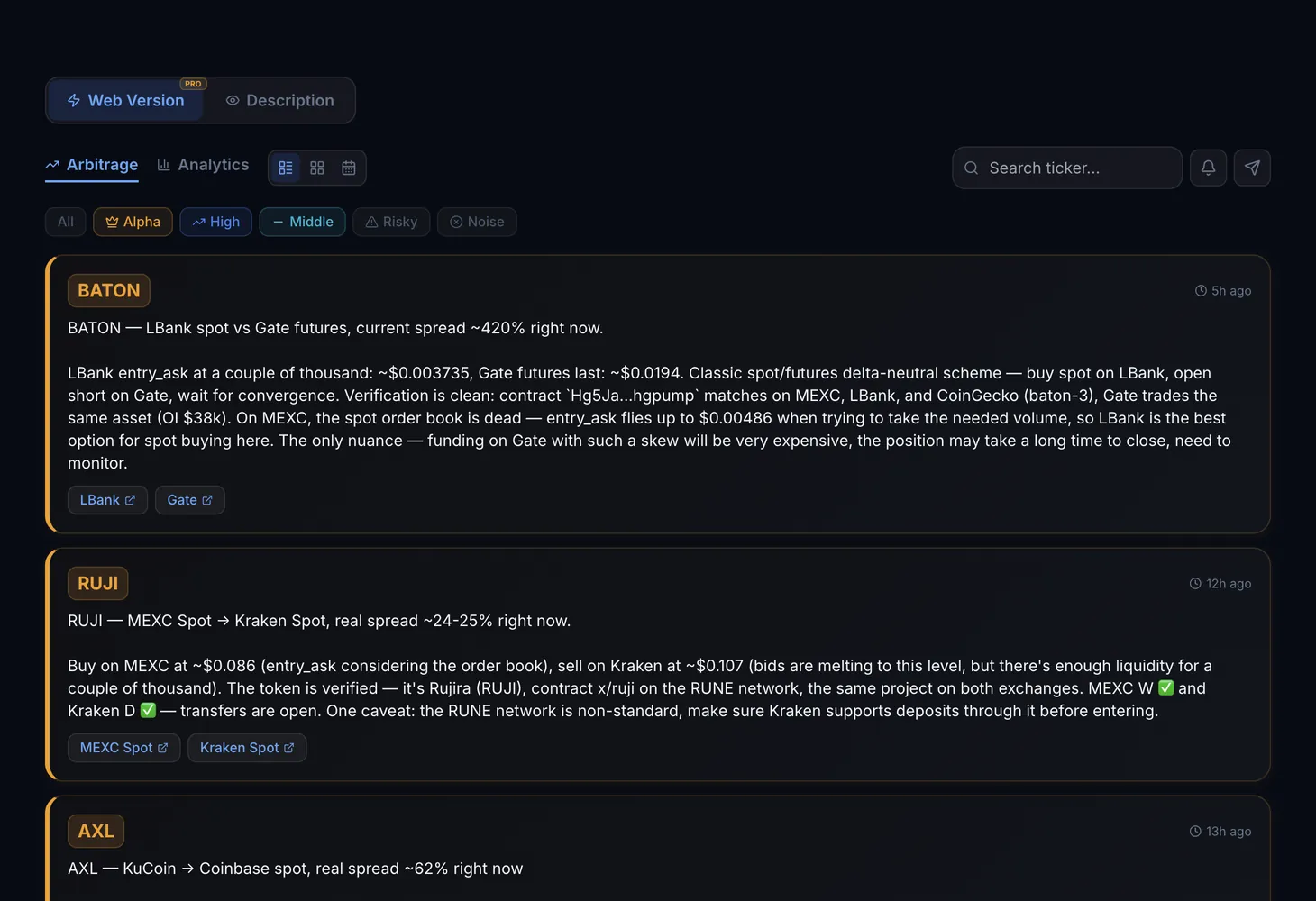
The Genesis AI+ web version has two tabs: "Arbitrage" and "Analytics".
- Search ticker — keep signals for one coin.
- Filters — choose categories: "All", Alpha, High, Middle, Risky or Noise.
- Read more — expand the full signal analytics; "Show less" hides it.
- Show more signals — load earlier signals in the feed.
To avoid keeping the tab open, turn on sound alerts or Telegram alerts.
How to use it
Open the web version
On the Genesis AI+ page click "Web Version" and choose the "Arbitrage" tab.
Keep the strong categories
In "Filters" select Alpha and High. Beginners should start with these.
Study the signal
Click "Read more": read the analytics and risks and follow the exchange links.
Check the pair yourself
Compare prices, the order book and deposit and withdrawal status, and count fees in the spread calculator.
Plans
Genesis AI+ is part of the paid plans; the service page has a "Try PRO" button for this. What each plan includes is listed on the Pricing page.
Why a spread is not profit is covered in the crypto arbitrage course and in the glossary entry "Spread".
Questions and answers
How is Genesis AI+ different from a regular scanner?
A scanner shows every spread in a row. Genesis AI+ verifies each signal — liquidity, order books, contracts and pools — and then assigns a category with a risk assessment.
How fast do signals arrive?
In real time: the neural network processes data in seconds. To not miss a signal, turn on sound or Telegram alerts.
Do I need arbitrage experience?
No, but caution is needed. Each signal includes analytics, a category and exchange links. Beginners should start with the Alpha and High categories and check every pair manually.