Coin Search: a coin's profile across exchanges and Genesis Arbitrage sections
In short
- CEX Search by ticker gathers a coin's prices, trading, deposit and withdrawal status, contracts and funding across all exchanges.
- Below that you see what each Genesis Arbitrage section found for the coin: arbitrage, DEX, funding, pumps and open interest.
- DEX Search by contract address shows the token's pairs on decentralized exchanges with liquidity and transactions.
Coin Search puts everything Genesis Arbitrage knows about a coin on one page: which exchanges list it, at what price, whether deposits and withdrawals are open, its contract and its funding. It also shows whether the coin has pairs in the arbitrage sections, a pump or an open interest anomaly. It is a quick way to check a coin before a trade.
Two search tabs
| Tab | What to enter | What you get |
|---|---|---|
| CEX Search | A coin ticker, for example BTC or ETH | Data from centralized exchanges and Genesis Arbitrage sections |
| DEX Search | A contract address | The token's pairs on decentralized exchanges |
Enter the query and press Search. If there is no such coin, you will see Coin not found.
CEX Search
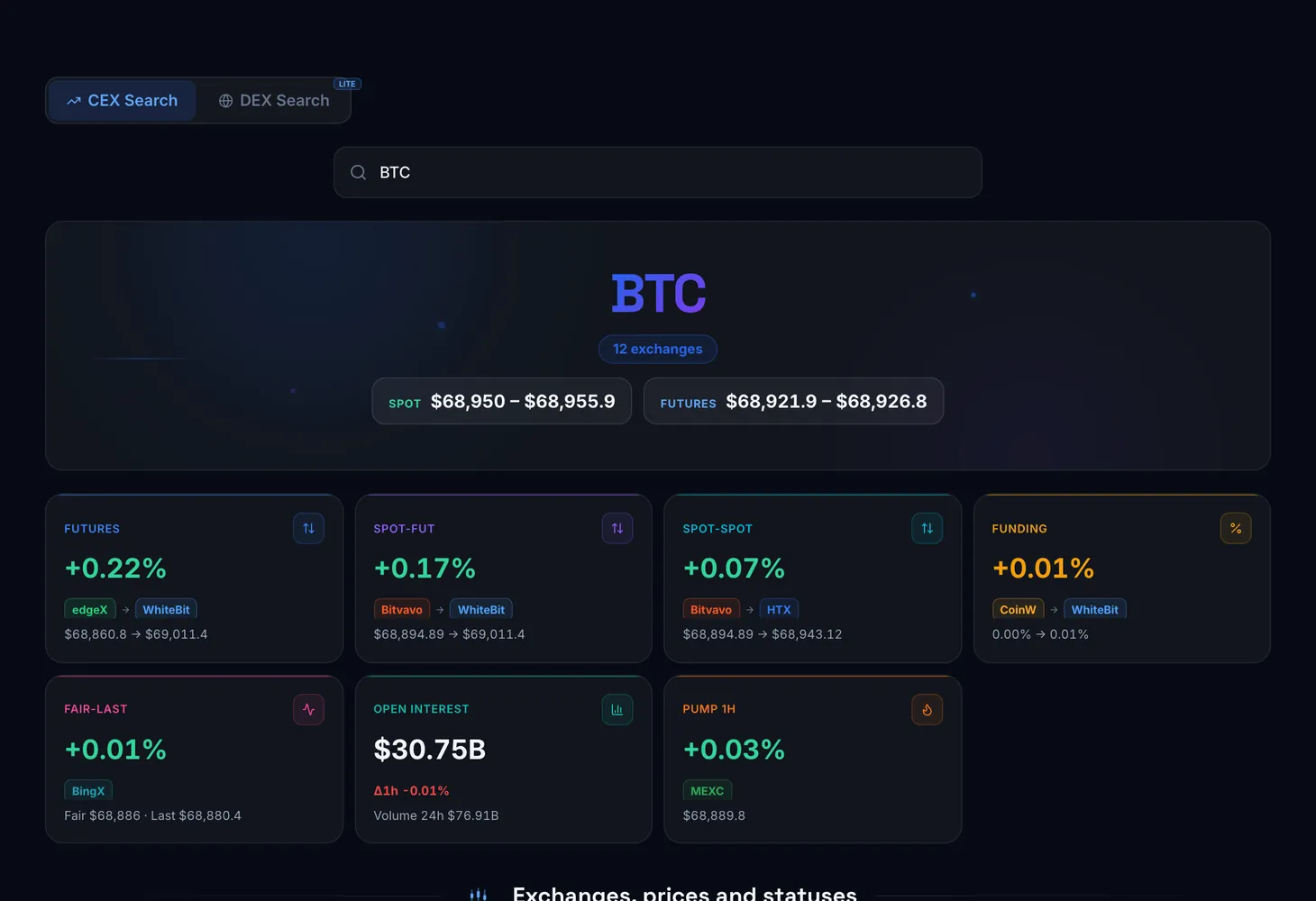
Summary
At the top is a short summary by direction: Futures, Spot-Fut, Spot-Spot, Stocks, DEX, Funding, Open interest and Pump 1h. It shows at a glance where the coin has something worth a look.
Exchanges, prices and statuses
| Element | What it shows |
|---|---|
| Exchange and Price | Where the coin trades and at what price |
| Trade | Whether trading in the coin is open |
| Deposit and Withdraw | Whether deposits and withdrawals are open |
| Contracts | The token's contract addresses |
| Funding | The funding rate on futures |
| Spread and Max spread | The price gap between exchanges and the largest one |
Genesis Arbitrage sections
- CEX arbitrage and Stock arbitrage: pairs with Buy, Sell and Spread columns.
- DEX - Spot and DEX - Futures: CEX price compared with DEX price. The spread is calculated as (CEX − DEX) / DEX.
- Funding spread: the Best pair for funding arbitrage.
- CEX Pumps-Dumps: the coin's Price change.
- OI tracking: OI share by exchange, Total OI and Volume 24h.
DEX Search
After you enter a contract address you see the number of pairs found and, for each, the price, Liquidity, Price change and Txns 24h, plus links to the project website and the pool. This makes it easier to find the pool with the most liquidity and not mistake the token for a fake under the same ticker.
How to use it
Enter a ticker
On the CEX Search tab, type the ticker and press Search.
Read the summary
Note which directions have data: a spread, funding, a pump or an OI change.
Check the statuses
In the Exchanges, prices and statuses block, make sure trading, deposits and withdrawals are open on the exchanges you need, and compare the contracts.
Go to the section
Open the pair in its own section, for example Spot – Spot or Funding Arbitrage, to see the details.
Plans
| What | Plan |
|---|---|
| Search and exchanges in free mode | 5 exchanges |
| All exchanges | With a subscription |
| Some sections | Lite or Pro |
| Some sections and some exchanges in OI tracking | Pro |
A locked section shows which plan it needs and a View plans button. Plan details are on the Pricing page.
To make sense of the figures, see the glossary: spread, funding rate and open interest.
Questions and answers
How do CEX Search and DEX Search differ?
The first searches by ticker and shows centralized exchanges and Genesis Arbitrage sections. The second searches by contract address and shows the token's pairs on decentralized exchanges.
Why do I see only 5 exchanges?
In free mode the search shows 5 exchanges. With a subscription you see all of them.
How is the CEX to DEX spread calculated?
As the difference between the centralized exchange price and the DEX price, divided by the DEX price: (CEX − DEX) / DEX.